Overview
Email Settings
Set up how certificates are delivered to recipients via email. This section allows you to define the sender identity, choose a mail provider, and customize the email content for a professional and automated experience.
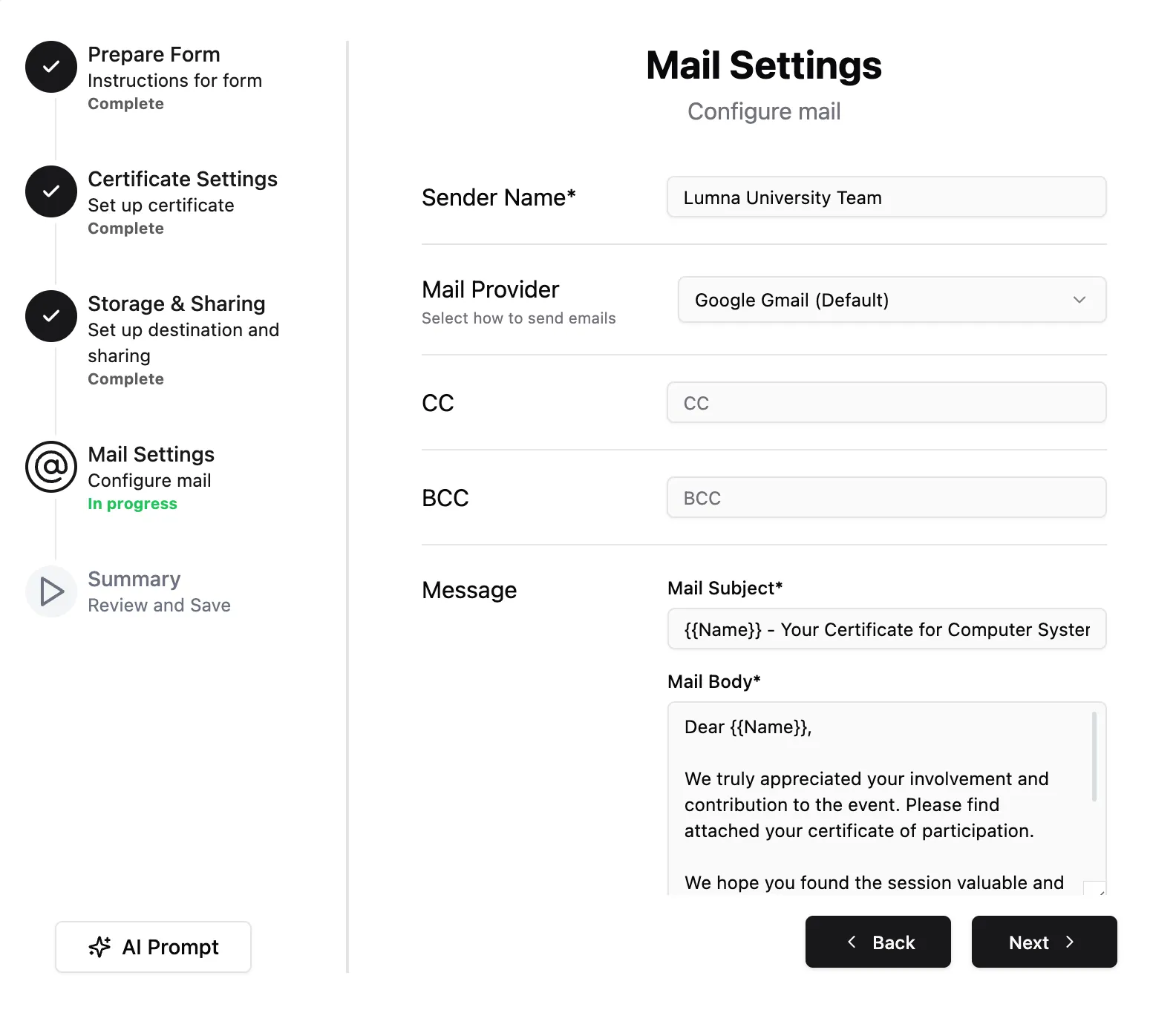
Sender Name
Define the name that appears in the recipient’s inbox as the sender.
Example: Lumina University Team
Mail Provider
Choose the email service used to send certificates.
Supported providers:
Recommended
- Google Gmail (Default) — recommended for beginners
- Gmail Account Pool — use multiple Gmail accounts for higher sending limits
Popular Providers
- Amazon SES — scalable & cost-effective
- SendGrid — easy setup & reliable delivery
- Mailgun — developer-friendly
Other Providers
- Mailchimp (Mandrill)
- Postmark
- Brevo
- Mailjet
- Resend
- Bird (MessageBird)
- MailerSend
- Mailtrap — best for testing emails
👉 For setup instructions, go to Mail Providers section in the sidebar.
CC (Carbon Copy)
Send a copy of each email to additional recipients. Useful for internal records.
BCC (Blind Carbon Copy)
Send hidden copies of emails to maintain recipient privacy while keeping internal logs.
Email Message
Customize the subject and body. Use {{Name}} and {{Email}} as dynamic merge fields to personalize each delivery.
Attachments
Generated certificates are automatically attached.
- PDF (recommended)
- Image (PNG/JPG)
Delivery Behavior
- ✅ Certificates are sent automatically on form submission.
- ✅ Supports bulk sending for existing responses.
Summary
The Email Settings tab gives you complete control over delivery. By using the Test Connection tool for your chosen provider, you ensure a professional and automated certification workflow.